
Blog
How to Use FindOurTime for Group Scheduling
Create a private availability poll, collect responses across time zones, compare overlaps, and finalize a group meeting with FindOurTime.
Finding a time that works for several people should not require a long email thread. FindOurTime lets an organizer propose times, collect everyone's availability, compare the overlap, and finalize the meeting from one private poll.
Quick answer
To schedule a group meeting with FindOurTime, create a private poll, mark the times you can host, and share the participant link. Everyone can respond without an account and view the choices in their own timezone. When the responses are in, use the organizer link to compare the overlap, select the best time, and share the final calendar event.
What you need before starting
Prepare a clear meeting title, a practical date range, the daily hours you can offer, and the timezone the poll should use. Add a video-call or meeting link if you already have one, and offer several realistic time slots so the group has room to overlap.
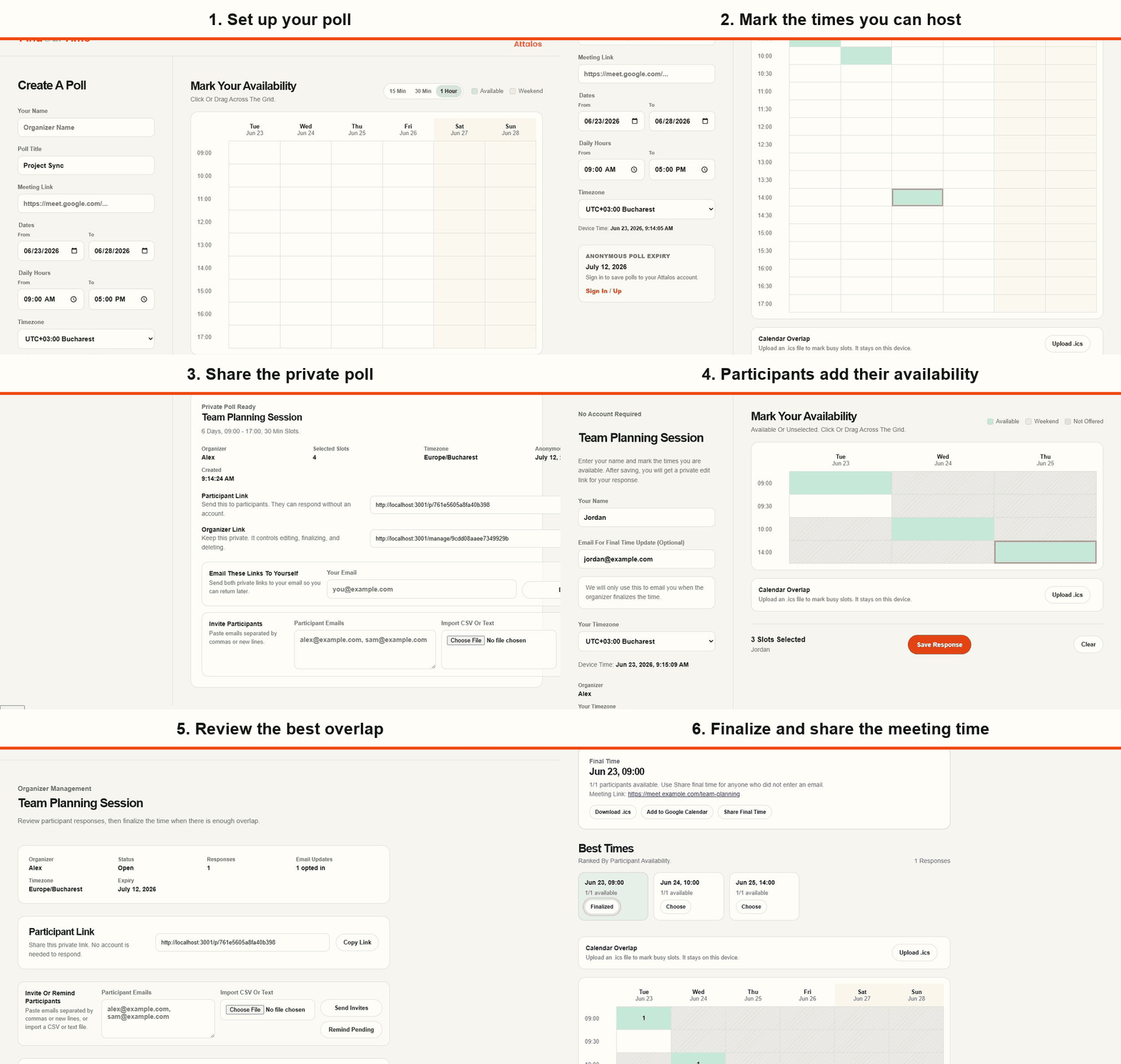
What FindOurTime does
FindOurTime is a private group scheduling tool for people working across devices and time zones. Organizers and participants can use it without creating an account. An Attalos account adds saved polls and a simple history, but it is not required to create or answer a poll.
1. Set up your poll
Open FindOurTime and complete the Create A Poll panel.
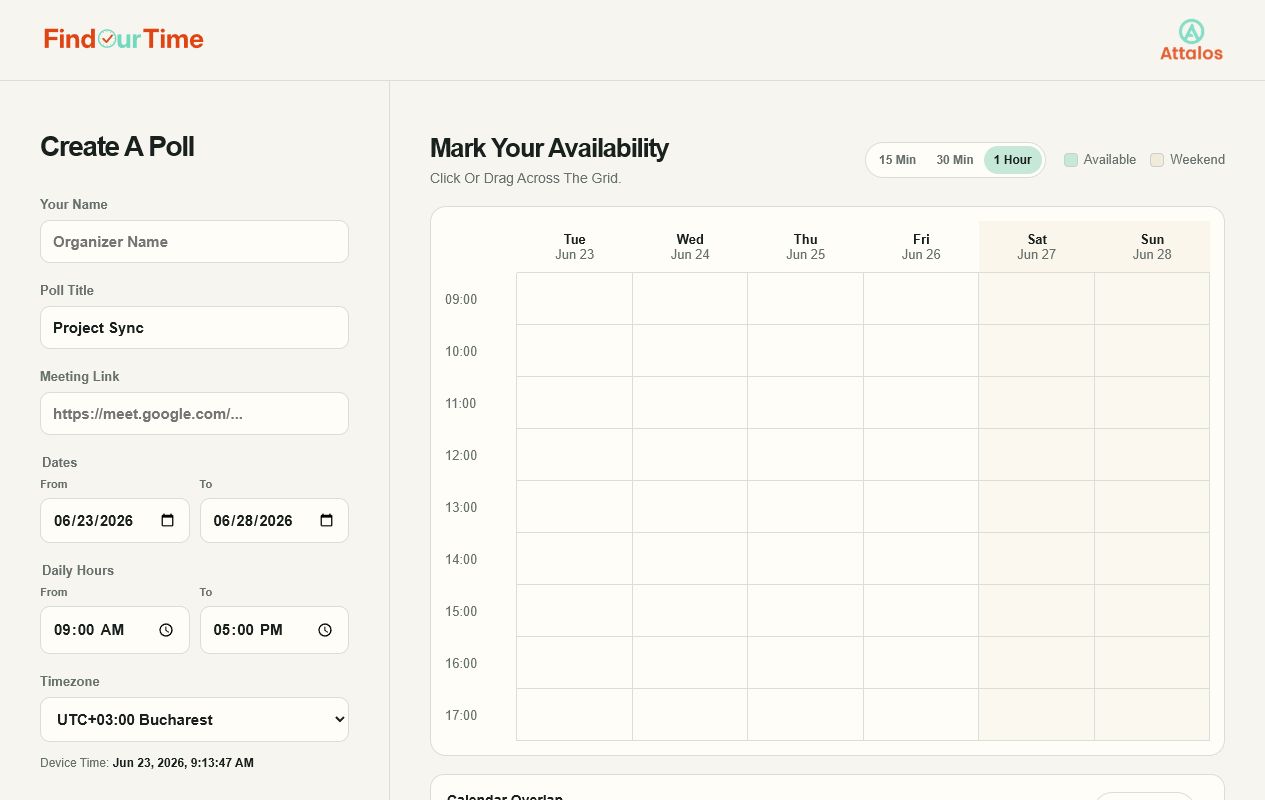
Add:
- Your name and a clear poll title
- An optional meeting link for the final invitation
- The date range and daily hours
- Your timezone
- A 15-minute, 30-minute, or 1-hour time increment
FindOurTime reads the device timezone and shows the current device time. If you choose a different timezone, a warning appears so you can double-check it.
2. Mark the times you can host
Click or drag across the grid to mark the times you are willing to offer.
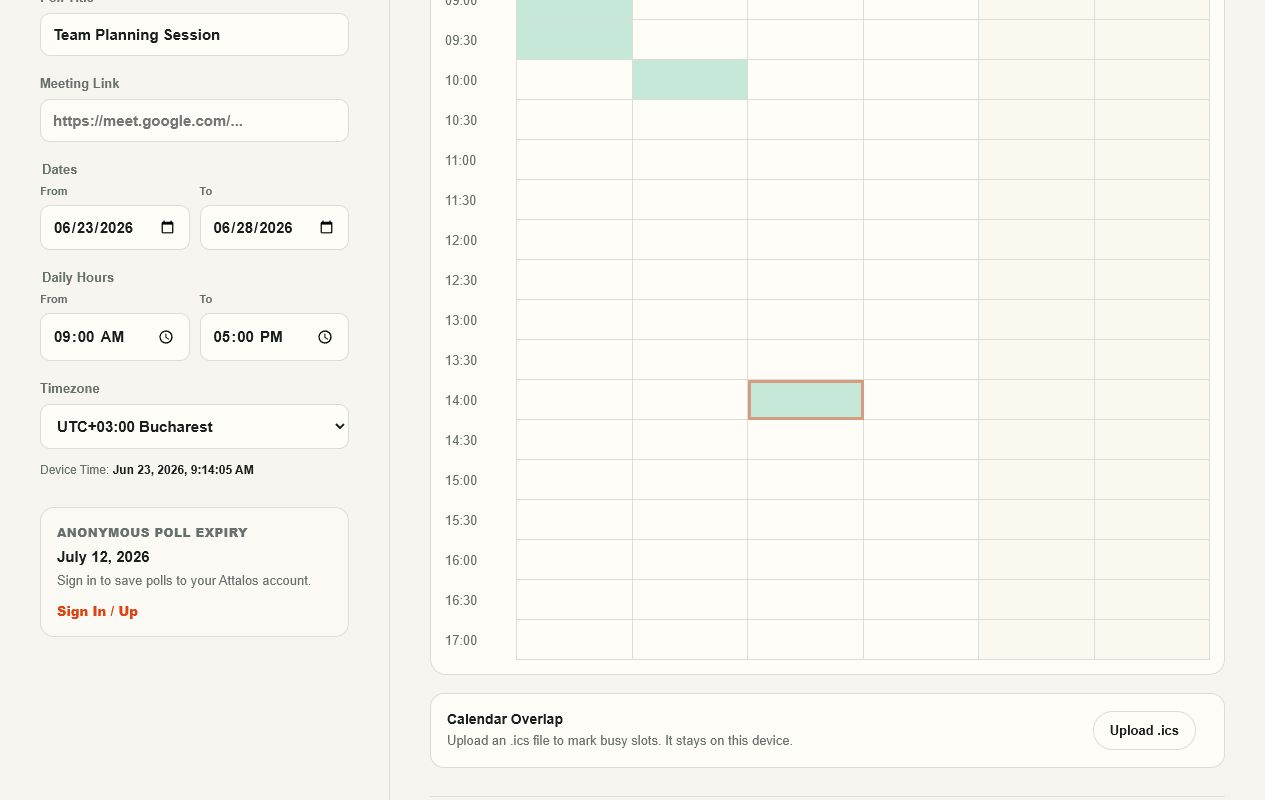
Weekend columns have a distinct background, and slots that were not offered remain visually separate from available slots. You can also upload an .ics calendar file to see existing calendar events alongside the grid. The calendar file is processed locally and stays on your device rather than being uploaded to FindOurTime.
When the proposed times look right, select Create Private Poll.
3. Keep the organizer link private and share the participant link
FindOurTime creates two different links.
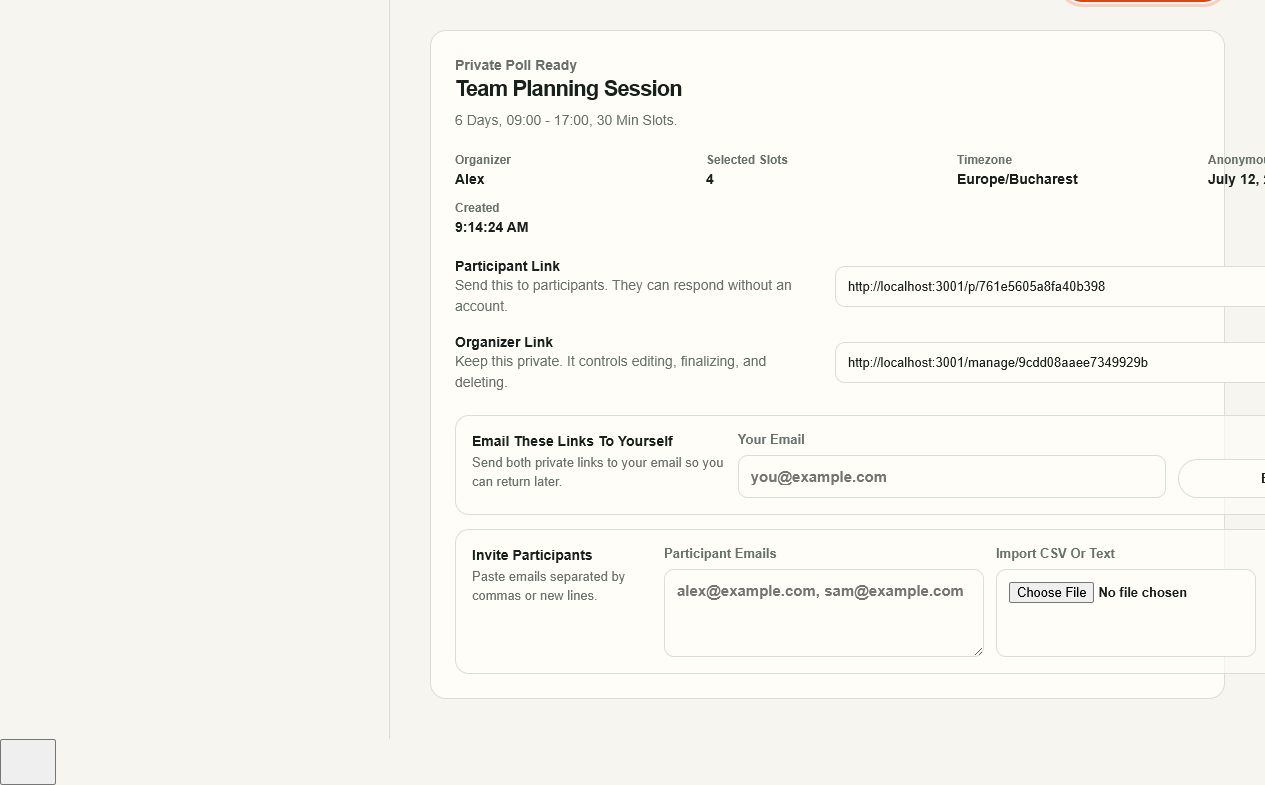
- Participant Link: Send this to everyone whose availability you need. No account is required.
- Organizer Link: Keep this private. It controls invitations, reminders, finalizing, reopening, and deleting the poll.
Email both links to yourself so you can return later. You can invite participants by pasting email addresses separated by commas or new lines, or by importing a CSV or text file.
4. Participants add their availability
Each participant opens the shared link, enters a name, and optionally adds an email address for final-time updates.
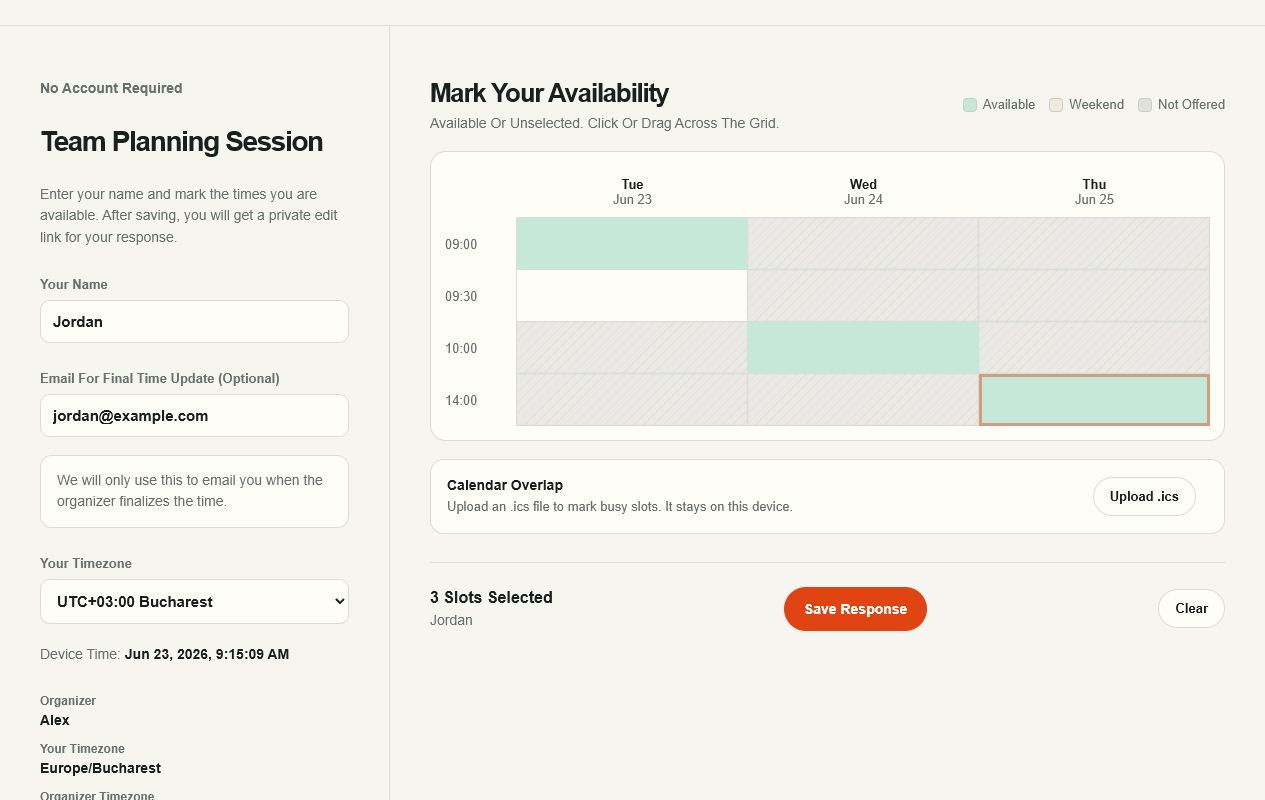
Participants can:
- Confirm or change their timezone
- See all proposed times in their own timezone
- Upload an .ics file to spot calendar conflicts
- Click or drag to mark availability
- Save a private edit link and email it to themselves
Email is optional. It is used for meeting updates and is never shown to other participants.
5. Review the overlap
The organizer page ranks the best times by participant availability and shows the full response grid.
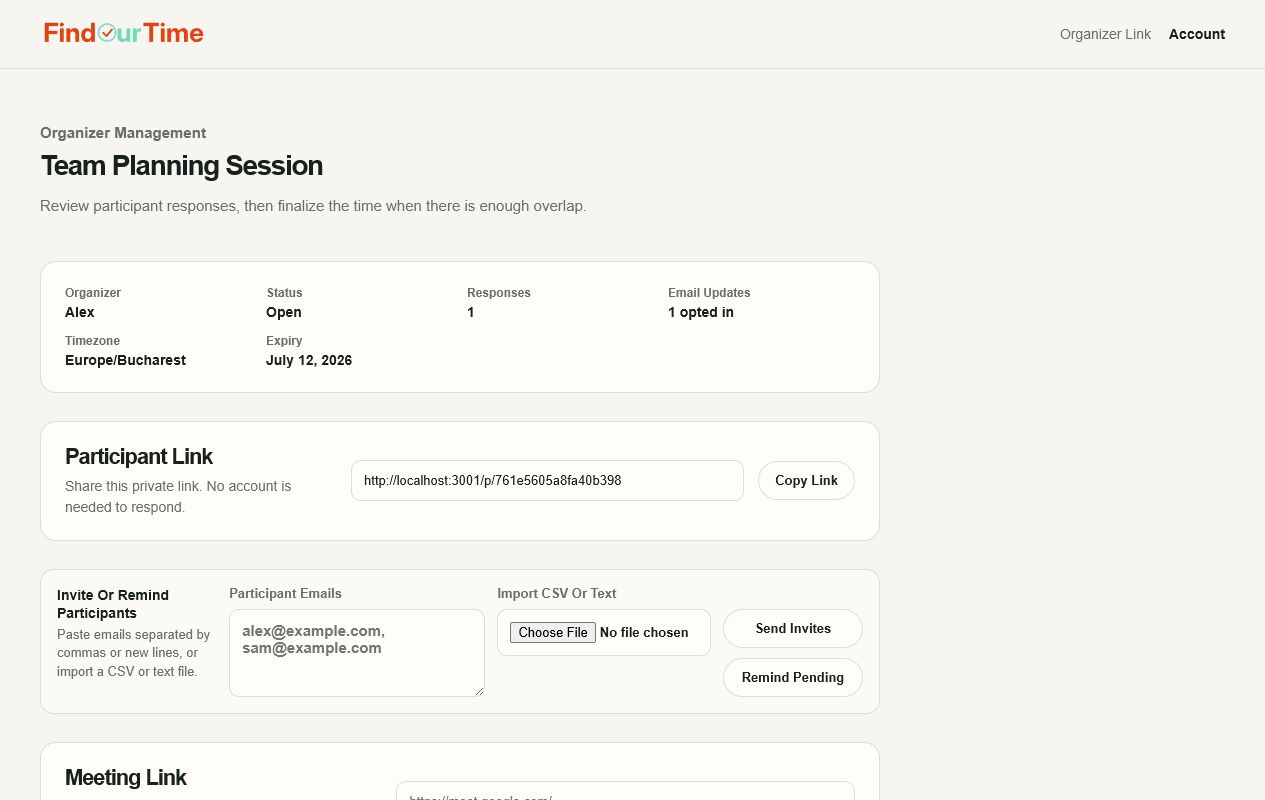
From here, the organizer can send invitations, remind people who have not responded, update the meeting link, close or reopen responses, and review individual submissions.
6. Finalize and share the meeting time
Choose a result from Best Times to finalize it.
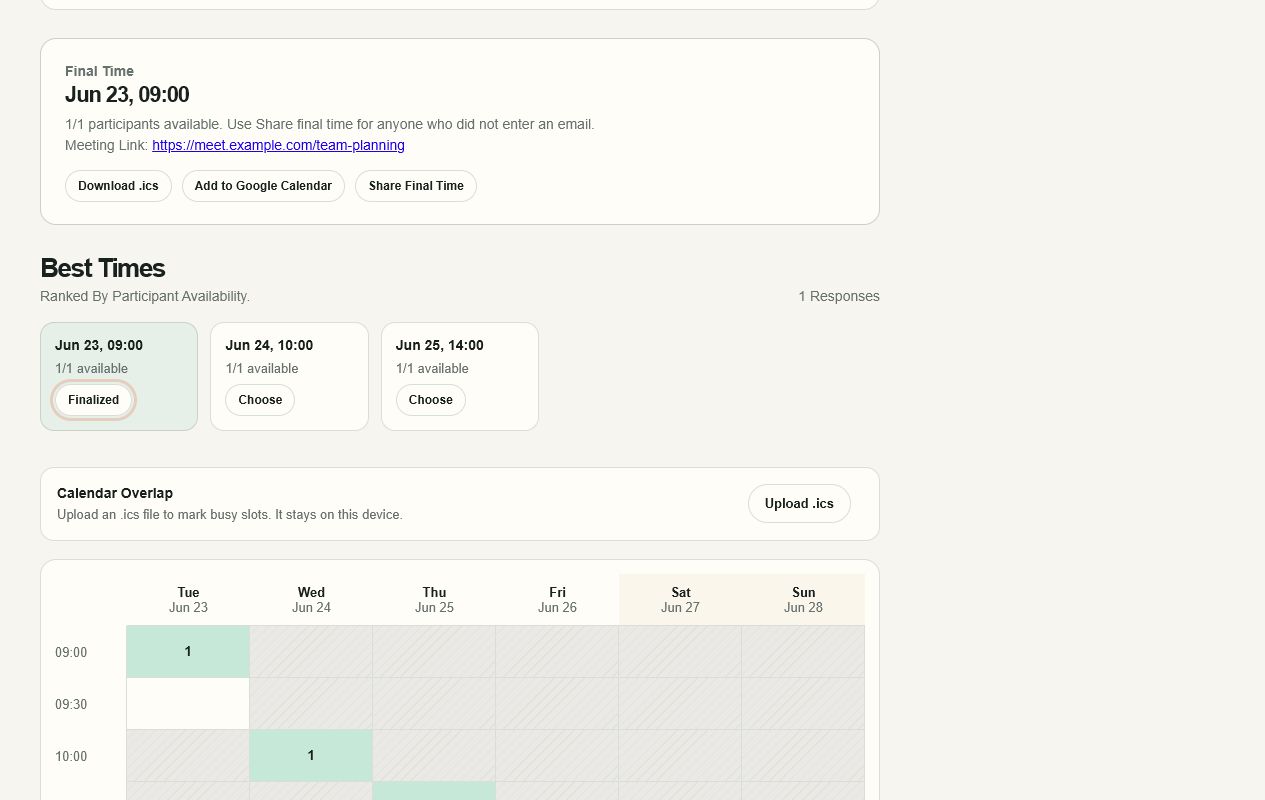
Participants who opted into email updates receive the selected date, time, timezone, and meeting link. If the organizer changes the final time, they receive an update. For everyone else, use Share Final Time.
The final card also includes:
- Download .ics
- Add to Google Calendar
- Share Final Time
When should you use FindOurTime?
Use FindOurTime when several people need to agree on one time, especially when participants are in different time zones or should be able to respond without registering. It is designed for availability polling and a final group decision. The organizer still reviews the overlap and chooses the meeting time; FindOurTime does not automatically book a time on everyone's calendar.
Accounts, expiry, and privacy
You do not need an account to create or answer a poll. Anonymous polls expire exactly 14 days after the latest selectable date in the poll. A free Attalos account can save up to three FindOurTime polls, while paid Attalos plans include unlimited saved polls.
The optional .ics calendar check happens on your device; the file is not uploaded. Treat organizer, participant, and private edit links like private documents. Anyone with the relevant link can access the actions attached to it.
Frequently asked questions
Do participants need a FindOurTime account?
No. Participants open the participant link, enter their name, mark their availability, and submit without creating an account.
Does FindOurTime upload my calendar?
No. If you choose an .ics file to check for conflicts, FindOurTime reads it locally on your device and does not upload the calendar file.
What is the difference between the organizer and participant links?
The participant link collects availability. The private organizer link controls invitations, reminders, results, finalization, reopening, and deletion, so it should not be shared with the group.
Can participants change an answer later?
Yes. After submitting, a participant can save or email themselves a private edit link. That link lets them update their response without an account.
How does FindOurTime handle time zones?
The poll has a selected timezone, while participants can confirm or change the timezone used to view its slots. FindOurTime shows the device time and warns when the selected timezone differs, helping the organizer and participants catch conversion mistakes before submitting.
When do polls expire, and how many can an account save?
An anonymous poll expires 14 days after its latest selectable date. A free Attalos account can save up to three polls; paid Attalos plans allow unlimited saved polls.
A quick checklist
Before sending your poll:
- Check the timezone shown beside the device time
- Offer more than one practical option
- Add the meeting link if it is already available
- Email the organizer link to yourself
- Share only the participant link with the group
- Finalize the time after enough people have responded
Create your FindOurTime poll and replace the scheduling thread with one clear decision.